Saturday, January 17, 2009

MOSS search access denied error after .NET Framework 3.5 sp1 installation

Recently we rolled out .NET Framework 3.5 sp1 on our MOSS Servers. During testing, we found out that while crawling the Sharepoint website the following error occurred:

Access is denied. Verify that either the Default Content Access Account has access to this repository, or add a crawl rule to crawl this repository.

To fix the above issue, try the below steps:
  • Click Start, click Run, type regedit, and then click OK.
  • In Registry Editor, locate and then click the following registry key: HKEY_LOCAL_MACHINE\SYSTEM\CurrentControlSet\Control\Lsa
  • Right-click Lsa, point to New, and then click DWORD Value.
  • Type DisableLoopbackCheck, and then press ENTER.
  • Right-click DisableLoopbackCheck, and then click Modify.
  • In the Value data box, type 1, and then click OK.
  • Quit Registry Editor, and then restart your computer.(Try to re-run the crawl after registry change without restart. Sometimes it may not be necessary to restart.)

Tuesday, December 16, 2008

MOSS out of the box search error

Recently while configuring the out of the box search for a MOSS site, I encountered the following error : Your search cannot be completed because of a service error. Try your search again or contact your administrator for more information.
In order to fix the error, please make sure the application pool, the site is running under, has access to the search index. Here are the steps to follow:

  • First make sure the MOSS Search Service is running. Check the event viewer for error messages. If everything is ok, go to the next step
  • Find out the application pool account the site is running under(network service, local account or another account)
  • Go to Central administration -> SSP settings -> Search
  • Check the default content access and make sure it is the same as the above one

Thursday, December 4, 2008

MOSS SSP URL

In order to get the SSP URL of the farm, we can use the following piece of code. This is really helpful if you don't want to hardcode the SSP URL.
   1:  private string getSSPURL()
   2:  {
   3:     string uri = string.Empty;
   4:     ServerContext sc = ServerContext.Default;
   5:     object ssp = sc.GetType().GetProperty("SharedResourceProvider",
                       BindingFlags.Instance | BindingFlags.NonPublic).GetValue(sc, null);
   6:     Guid sspGuid = (Guid)ssp.GetType().GetProperty("AdministrationSiteId").GetValue(ssp, null);
   7:     using (SPSite sspSite = new SPSite(sspGuid))
   8:     {
   9:       uri = sspSite.WebApplication.GetResponseUri(SPUrlZone.Default).AbsoluteUri + "ssp/admin";
  10:     }
  11:     return uri;
  12:  }

Wednesday, October 22, 2008

Team Site Error (A datasheet component compatible with Windows SharePoint Services is notinstalled, your browser does not support ActiveX controls...)
Since the last couple of days we were experiencing problems with the Team Site while trying to view a list in the Datasheet view mode. The error being displayed was something like this:

The list is displayed in Standard view. It cannot be displayed in Datasheet view for one or more of the following reasons: A datasheet component compatible with Windows SharePoint Services is not installed, your browser does not support ActiveX controls, or support for ActiveX controls is disabled.

This error was occurring due to a bug in the SharePoint Services Service Pack 3 update and this error has been temporarily fixed by following the below instructions:

  • Take backup of ows.js file in the following directory: C:\Program Files\Common Files\Microsoft Shared\Web Server Extensions\60\Template\Layouts\1033
  • Open ows.js file and add following function : function RenderActiveX(str){ document.write(str);}
  • Save the changes and do an iisreset
  • Refresh your browser

Thursday, October 2, 2008

Computers are like bicycles for are mind

I was going through a book and saw the following phrase - "Computers are like bicycles for are mind". Initially confused, later intrigued and fascinated, I tried to google it and found the following youtube video....

The graph shown in the above video (probably taken decades back) is really interesting. Please do check it out when you get a chance.

Saturday, August 23, 2008

SQL Server 2008 RTM Installation Instructions

I have installed SQL Server 2008 on 64 bit Windows Vista. Below are the steps for the same.

Steps:

1. Insert the SQL Server 2008 Installation media and navigate to the install folder.

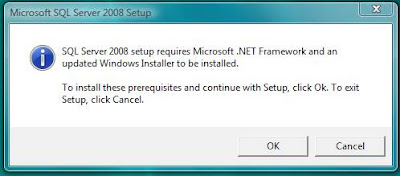
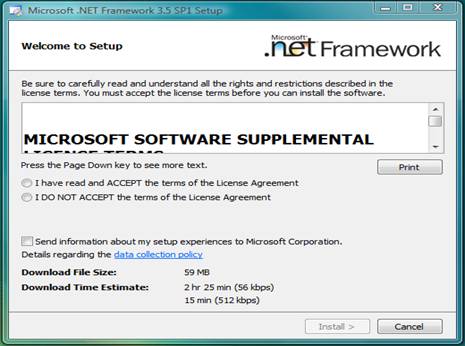
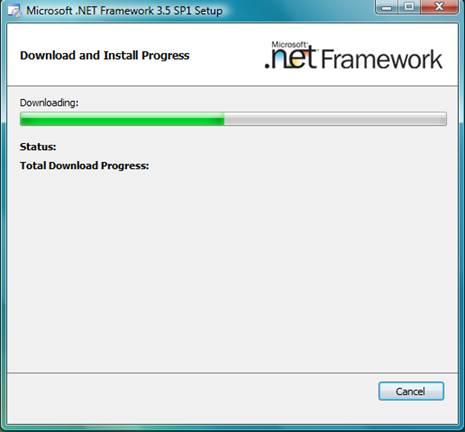
2. Run the setup.exe from the install folder. The installer checks for .NET Framework 3.5 sp1 and if not installed it will prompt you for installing it as show below.

3. Accept the license terms and proceed forward.

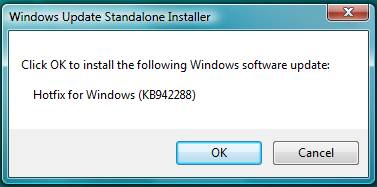
4. After .NET Framework is installed it will prompt for Windows Installer installation.

5. Once installed it will prompt for a system reboot. Please go ahead and reboot your system.

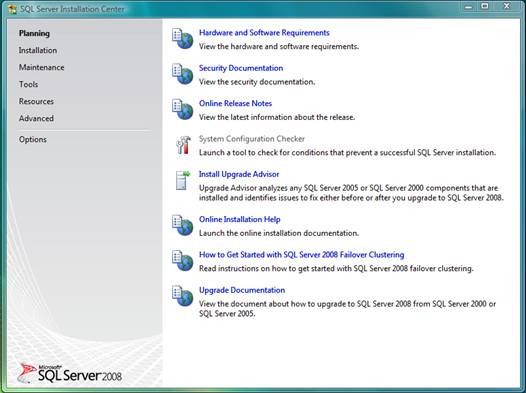
6. Once rebooted, please navigate back to the install folder and run the installer again. SQL Server 2008 has a nice Interface for installing different features. It has a total for six main tasks with each having different options.

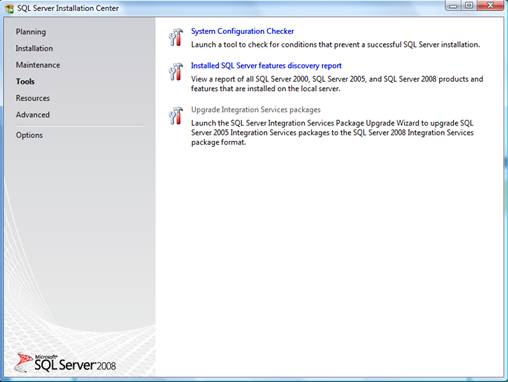
7. Clicking on the Planning -> System Configuration Checker brings up a tool for checking the conditions that might prevent a successful SQL Server installation. This will help in determining for any potential problems while installing SQL Server 2008.

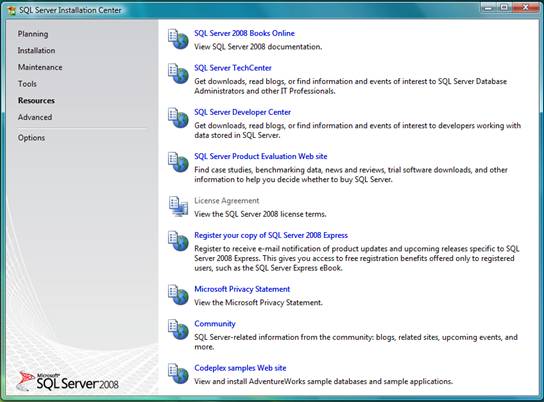
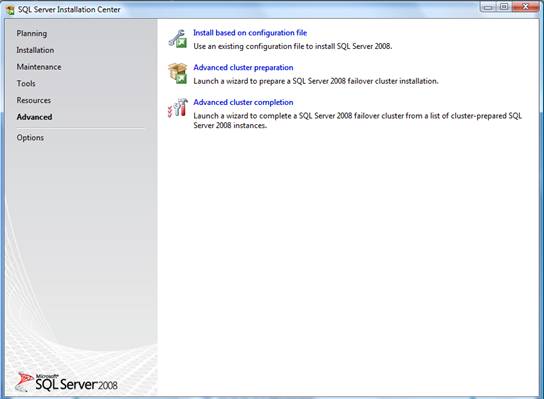
8. The rest of the screens show the different main tasks.

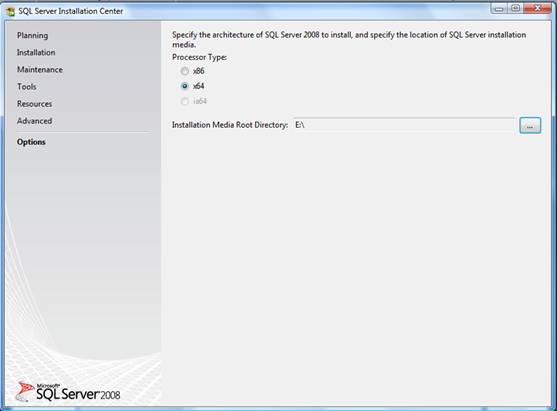
9. The options tasks determines the version for SQL Server to be installed. I will be installing the 64 bit version

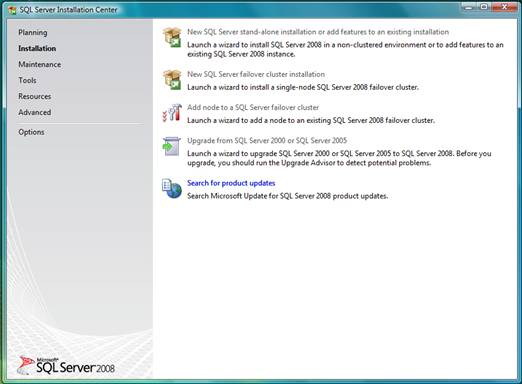
10. Install the SQL Server by choosing Installation -> New SQL Server stand-alone installation

11. You can choose to install a trial version or enter the product key to install the version. I will installing the developer full version of the software.

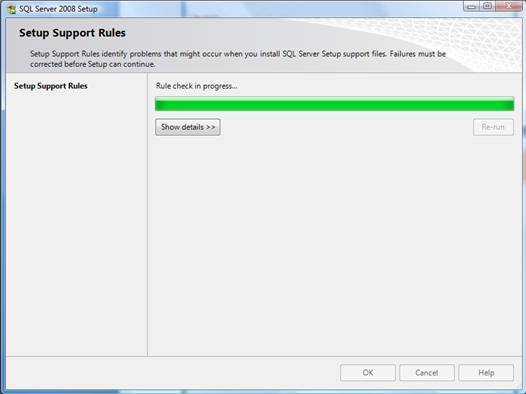
12. Accept the license terms and install the support files when prompted.

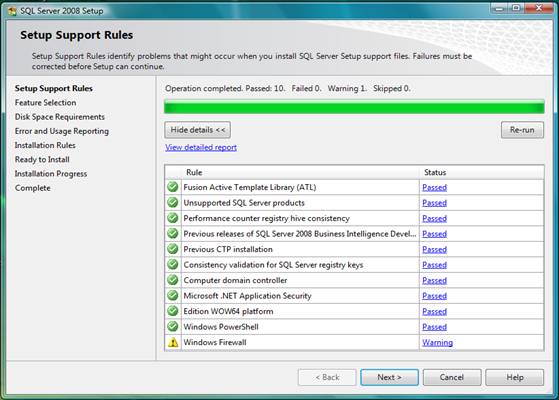
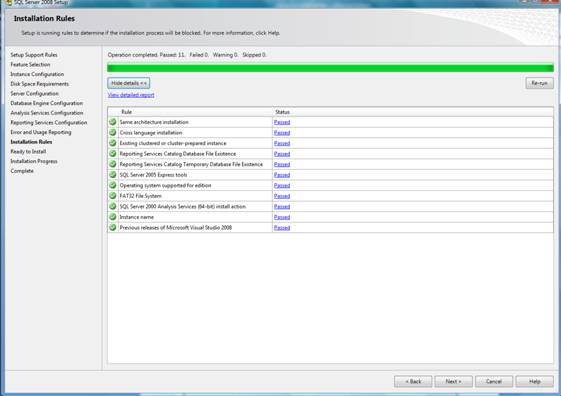
13. Any potential problems that might occur are again displayed and this cast an issue with Windows Firewall was displayed

We will open up the ports later after the installation is done. The ports are mentioned at the end of this post.

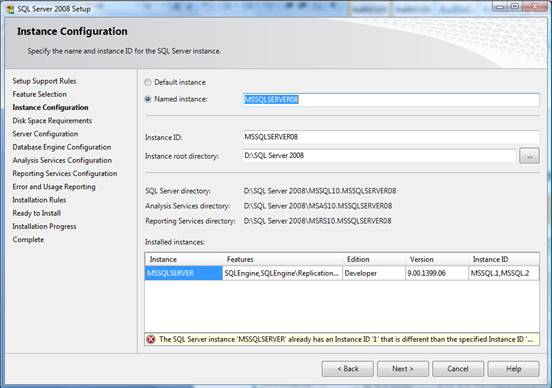
14. Next you will configure the required features. Since I will be installing SQL Server 2008 on a machine which has SQL Server 2005 installed, the default instance cannot be used to install it. A new instance with a unique name needs to be used. I will be using MSSQLServer08 (note the warning which shows up if you use the default/already existing instance name).

15. Next you need to configure the service accounts and I choose to use the same account for all SQL Service services.

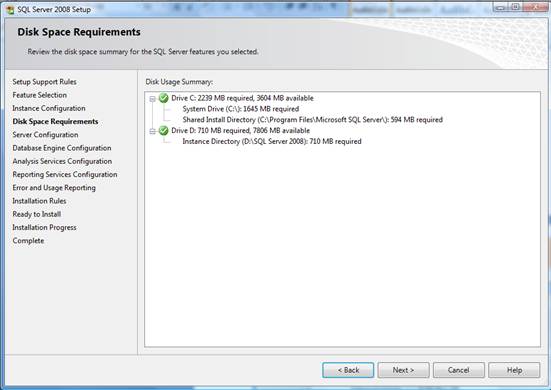
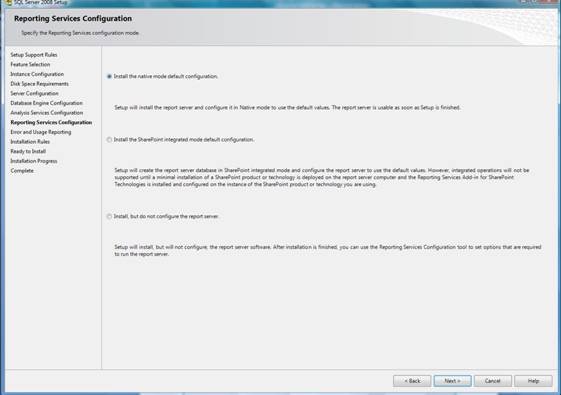
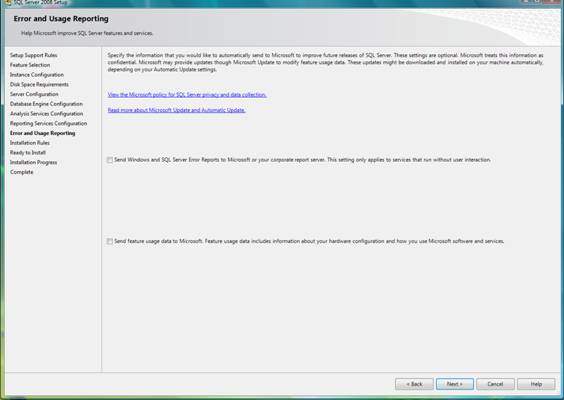
16. For each of the services, you will be able to configure the administrative accounts, installation paths as shown in the next screens…

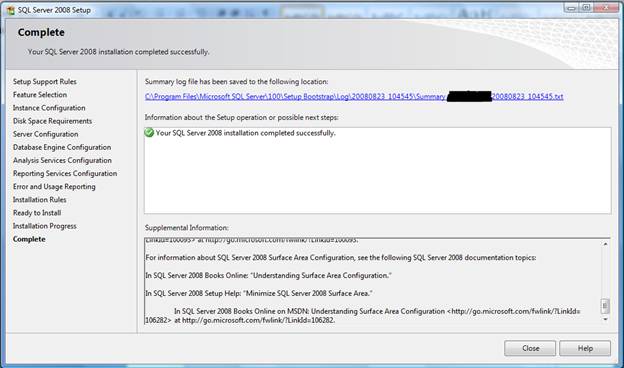
17. Please restart the system after the installation is complete.

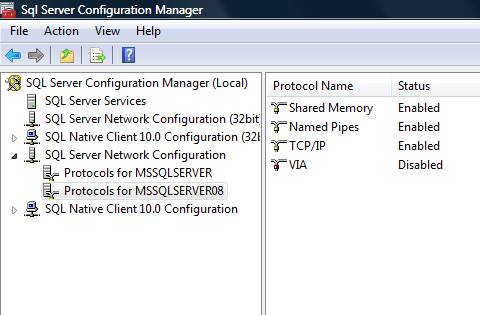
18. In order to enable remote connections to the SQL Server, the following steps need to be followed: Got to All Programs -> Microsoft SQL Server 2008 -> SQL Server Configuration Manager and enable the TCP/IP and Named Pipes protocol for the installed instance.

19. The following ports need to be opened up in the windows firewall:

Once the ports are up, you should be able to connect to SQL Server from a remote machine.

Service Name

Port Number

Database Engine

1433

SQL Browser

1434

SQL Broker

4022

Analysis Services

2383

Reporting Services

80/443

20. Open the SQL Server management studio and if you have SQL Server 2005 installed, the following message will come up. I did not want to import the settings from SQL Server 2005 and selected no to continue.

21. Next click yes to add the SQL Server 2005 management studio registered servers to 2008 Management studio.

You should be now ready to build and develop new databases....

References:

http://msdn.microsoft.com/en-us/library/ms143219.aspx

Sunday, May 11, 2008

Very Simple AJAX Example

Below is a very very simple AJAX example. This is intended for AJAX starters and is not for people who already know about AJAX.

Overview
AJAX - Asynchronous Java and XML has been the buzzword for the last couple of years. Though it is being used for a very long time now, the term AJAX was coined recently. AJAX is an attempt to give the web user an interactive, quick and rich user experience while navigating through your web application. Normally while requesting pages, every request causes a roundtrip to the server causing the page to freeze and prevents the user from doing any kind of interaction with the page. AJAX moves away from this feature where the user can continue working with the page while requests to the server happen in the background. A very good example of this is Google Maps.

The communication with the server is accomplished using XmlHttpRequest object. This object is responsible for opening the connection to the server and sending the request. Once request is complete and data is recieved, the page elements can be modified/updated as needed.
In the below example, when you hover over the label, the sendRequest method gets called which is responsible for opening the connection and sending the request to the "AjaxResponse.html" page on the server. This page just outputs the text "Hello World". The client callback function (callBackFunction()) gets triggered everytime the request state changes and raises an alert once the callback is complete.


   1:  <html xmlns="http://www.w3.org/1999/xhtml">
   2:      <head>       
   3:          <title>Basic AJAX Example</title>  
   4:          <script type="text/javascript">                
   5:          var xmlHTTP = null;        
   6:          //This method gets called everytime the request state changes
   7:          function callBackFunction()
   8:          {   
   9:              //check to see if the status of the request has changed
  10:              //other states are 0 = created but not initialized (open method not yet called),
  11:              //                 1 = initialized (sent method not yet called), 
  12:              //                 2 = sent request (response text and response body not available), 
  13:              //                 3 = recieved request (response text and response body not available),
  14:              //                 4 = all data has been recieved (response text and response body available)
  15:                  if(xmlHTTP.readyState == 4)
  16:                  {
  17:                      //check to see if the status is ok
  18:                      if(xmlHTTP.status == 200)
  19:                      {
  20:                          alert('call back completed and data is recieved from the server');                    
  21:                      }
  22:                  }
  23:          }
  24:      
  25:          //This method creates the xmlHTTPRequest object and sends the request
  26:          function sendRequest()
  27:          {
  28:              //check the browser and instantiate the appropriate object -- IE 7, Mozilla
  29:                  if(window.XMLHttpRequest)
  30:                  {       
  31:                      xmlHTTP = new XMLHttpRequest();
  32:                  }
  33:              //Previous versions of IE like IE 5 and old browsers
  34:                  else if(window.ActiveXObject)
  35:                  {
  36:                      xmlHTTP = new ActiveXObject(Microsoft.XMLHTTP);                    
  37:                      //alernative 
  38:                      //xmlHTTP = new ActiveXObject(MSXML2.XMLHTTP);                                
  39:                  }
  40:                  else
  41:                  {
  42:                      alert('Browser not supported');
  43:                  }                      
  44:              //open a connection using a xmlHttpRequest object
  45:                  xmlHTTP.open("GET","AjaxResponse.html", true);
  46:              
  47:              //set the method to be called when the request status changes
  48:                  xmlHTTP.onreadystatechange  = callBackFunction;
  49:              
  50:              //send the request
  51:                  xmlHTTP.send(null);            
  52:          }
  53:      </script>    
  54:      </head>    
  55:      <body>
  56:              <label id="label1" onmouseover="sendRequest();">Hover over me</label>
  57:      </body>
  58:  </html>
Again, this is a very simple example and you should be able to find more advanced and complicated examples on the web. The page elements can be modified using javascript to insert the response text on the calling page.