Tuesday, May 8, 2012

Windows Server 8 Part 2–VMware Tools


After installing Windows Server  8, I did not install the VMware tools immediately.  When I eventually did, I was no longer able to get into the Server.
It would boot fine, but come up with the a blank Windows 8 Server screen. So looks like Windows Server 8 does not like VMware tools yet. Or, there is an update for WorkStation 8 which supports Windows Server 8. My co-worker suggested that he might have had the same problem and mentioned about an update. So, I upgraded Workstation to 8.0.3 build-703057. Did that solve the problem ? Nope…It did  not.  Since, the VM boots properly and has issues displaying,  I enabled the “Accelerate 3D graphics” option in the Hardware Settings of the VM. That’s it….It did the trick and now, I can get to my VM. More later…

DisableAG

Friday, April 27, 2012

Windows Server 8 Part 1 – Basic Install

Recently, I started testing Windows Server 8 (or Windows Server 2012 as officially called now) and wanted to blog about this for sometime now. This is going to be the beginning of a series of posts related to Windows Server 8/2012.

The first post will cover the basic install steps of building a Windows Server 8 virtual machine using VMWare Workstation.  So let’s get started.
First, let’s fire up VMWare Workstation and start creating a new virtual machine. Let’s pick the “Typical” configuration.
1
In the next step, we will use the Windows Server  8 Beta ISO as the install software.
2
Now, let’s pick Windows Server 2008 R2 as the template. I did try it using the “other” option, but the install crashed and kept on rebooting.
3
The next screen is used for easy install. You can leave the default settings. There is no need to enter a product  key here. Actually, easy install will not work here. In a later step, we will see how to remove the install configuration file and get through the error message.
4
You can change the name of the virtual machine in the next screen and the path to the virtual machine folder.
7
Next, we will specify the disk size. You can leave the default settings or use a custom size.
6
Next, will be the summary screen.
8
Click on the customize hardware to change the hardware settings. After finishing the hardware settings, click “Finish” to create the virtual machine.
9
The virtual machine should start the process of creating a new Virtual Machine.
13
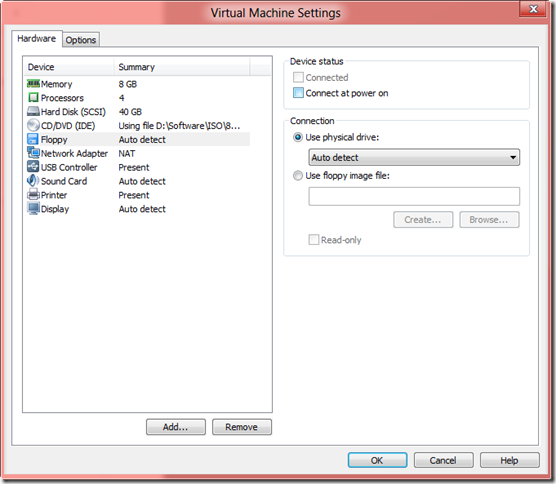
Since, VMWare WorkStation uses easy install the process and will fail when looking for a product key. You will need to remove the install configuration file in the settings window to continue the install process.
10
12
Make sure the floppy drive is not connected and uses the “use physical drive” option instead of floppy image file. The floppy image file is pointing to a configuration file which will look for product key screen.  After you change the settings, click close and restart the virtual machine.
The next steps are self explanatory. The first step involves setting few basic options.
14 15 16
Next, you can pick Core/GUI option for configuring Windows Server 8. This is not new in Server 8. It was available in Windows 2008 R2.
Also, you can pick custom install as the option when prompted.
17 18 19
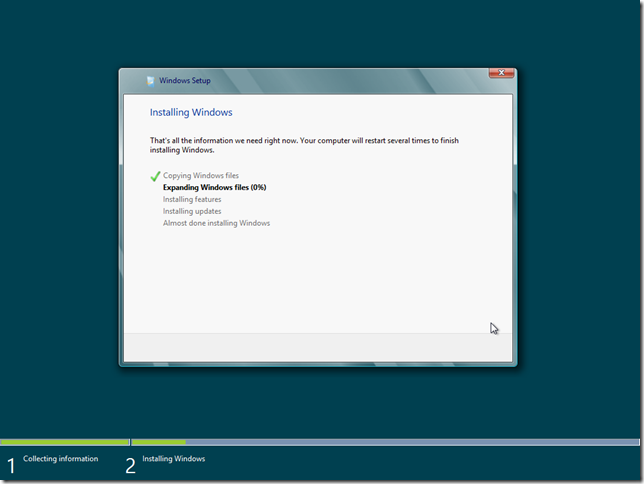
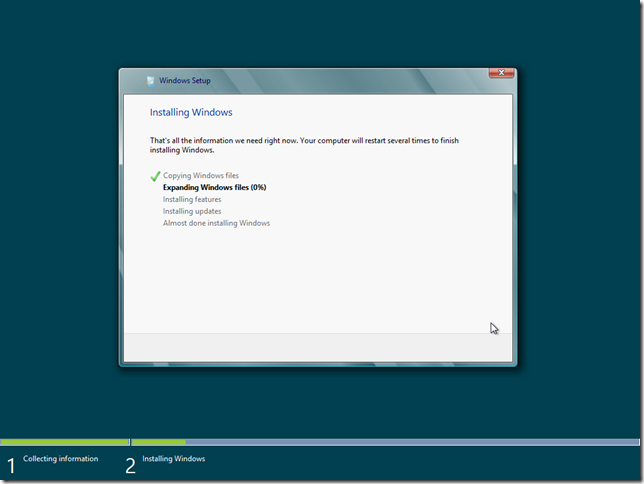
Pick the drive where the OS needs to be installed and the install will continue to copy, install features and reboot.
20 21 21
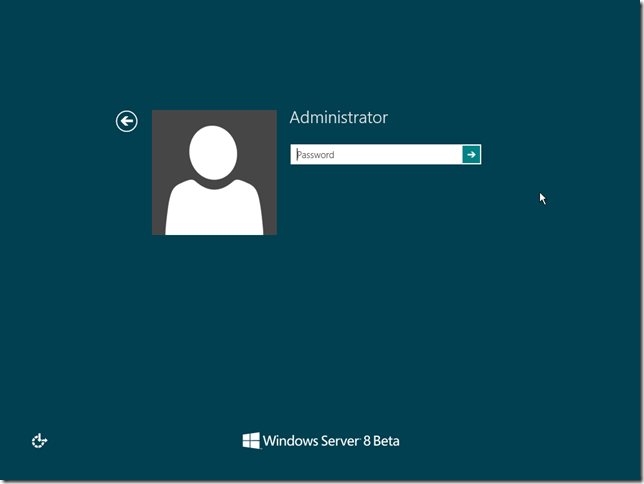
When prompted, enter and confirm the admin password.
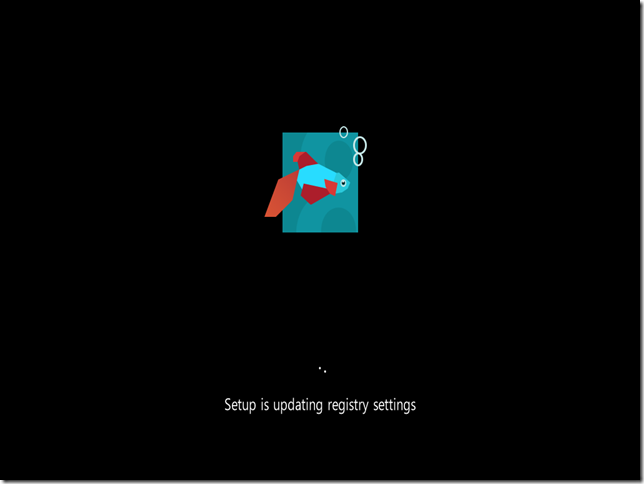
2224 25
Voila ! You are done and ready with Windows Server 8.
26 27

Thursday, April 26, 2012

SQL Server 2012 Reporting Services Upgrade Error


During the In-Place upgrade from SQL Server 2008 R2 to SQL Server 2012, sometimes the Reporting Services component upgrade would error out with  different types of error messages:

Specifically, the errors would be something like:

  • A Secure Sockets Layer (SSL) certificate is not configured on the Web site
  • An SSL binding already exists for the specified IP address and port combination. The existing binding uses a different certificate from the current requests. Only one certificate can be used for each IP address and port combination. To correct the problem, either use the same certificate as the existing binding, or remove the existing SSL binding and create a new binding using the certificate of the current request.

To resolve this issue, it is important to understand the workflow of the Reporting Services upgrade path. Your best friend in this case is MSDN. I could not find anyone else having the same problem.

Going to MSDN: http://msdn.microsoft.com/en-us/library/ms143747.aspx (Upgrade and Migrate Reporting Services), the first thing you will notice here is :

  • Run the upgrade advisor before you do the upgrade
  • Remove invalid SSL certificates.  This includes certificates that are expired and you do not plan to update prior to upgrading Reporting Services.  Invalid certificates will cause upgrade to fail and an error message similar to the following will be written to the Reporting Services Log file: Microsoft.ReportingServices.WmiProvider.WMIProviderException: A Secure Sockets Layer (SSL) certificate is not configured on the Web site.

I ran the upgrade advisor and not find any issues.  The SSL Certificates on the server were still valid and not expired.

So, I took a snapshot of the VM and ran the upgrade. It failed giving me the second reporting services error. I reverted back the snapshot and then opened up reporting services configuration manager. In here, I made the below two changes before the upgrade was restarted:

  • Under Web Service URL
    • IP Address –> Changed it to “All Unassigned”
    • Under Advanced –> Removed the SSL Certificates
  • Under Report Manager URL
    • Click Advanced –>  change the IP Address to Unassigned and Remove the SSL bindings.

Both the above steps are necessary. Even if you don’t do one piece, the Upgrade fails.

Once the above steps were done, the upgrade was very smooth and successful.

Wednesday, April 25, 2012

Infopath Forms Exception after Windows Updates


Our production servers receive Windows update immediately and during one of the maintenance periods, the InfoPath forms on a SharePoint Site stopped working.
Looking at the ULS logs, I saw the below error:
System.IO.FileLoadException: Loading this assembly would produce a different grant set from other instances. (Exception from HRESULT: 0x80131401)    at Microsoft.Office.Server.Diagnostics.FirstChanceHandler.ExceptionFilter(Boolean fRethrowException, TryBlock tryBlock, FilterBlock filter, CatchBlock catchBlock, FinallyBlock finallyBlock)     at Microsoft.Office.InfoPath.Server.DocumentLifetime.ErrorPageRenderer.RunAndGetErrorRendererOnException(HttpContext context, EventLogStart eventLogStart, TryBlock tryblock, CatchBlock catchblock)     at Microsoft.Office.InfoPath.Server.Controls.XmlFormView.LoadDocumentAndPlayEventLog()     at Microsoft.Office.InfoPath.Server.Controls.XmlFormView.OnDataBindHelper()     at Microsoft.Office.InfoPath.Server.Controls.XmlFormView.OnDataBinding(EventArgs e)
Anytime the error “Loading this assembly would produce a different grant set from other instances” shows up, it means that the application pool needs to be recycled. It is almost like the app pool got loaded into memory during the updates.
So, I quickly recycled the application pool and it fixed the error.

Tuesday, April 24, 2012

Windows 8 Consumer Preview (CP)–After a month


I have been using Windows 8 since the developer preview and currently using the CP since its release. Windows 8 CP is currently my main workstation with all the developer tools installed. When using the developer preview, I was running into frequent crashes but CP has been really great. The frequent crashes are not happening anymore. Windows 8 is a huge shift for Microsoft Users as the user interface has been completely redesigned and is based on Microsoft’s Metro User Interface. Microsoft is aiming towards a single operating system for both desktop, tablet and phone users. The trick will be to satisfy all the different types of users and this will be a difficult task to accomplish. If Microsoft can pull this off, it will be a huge accomplishment on their part. Historically, it has been proven to be difficult to satisfy all types of consumers. Each area like tablet, desktop and phone has a niche of users with their own requirements.

Coming to Windows 8, here is my analysis:

  • Will work great on Tablets. Have been using Samsung 7 Slate and is awesome !
  • Enterprises  will embrace it quickly because of some of the nice features
  • What are the nice features ?
    • Single interface for tablets and PC’s
    • Metro Applications
    • Reset and Refresh – easily restore your PC
    • Sky Drive integration
    • File History
    • Charms
    • Snap Multi-Tasking
    • Windows 2 Go
    • Better Support for multiple monitors
    • Excellent Search – search for anything and everything
    • More (another blog post)
  • Now to the sore points
    • No Start button –> This will take time to sink in
    • Power and Restart buttons –> not easy to find
    • Turn off Metro interface if needed –> cannot do it in DP or CP (may be in Release Preview)
    • Close background applications –> no easy way to do this (right click on the top left of the screen actually shows the applications which can be closed OR task manager)

Tuesday, September 20, 2011

Windows 8–Day 2

The Windows task Manager in Windows 8 is completely revamped. I like the new look of the task manager. It is very intuitive and a single place to go to to debug all the issues. The task manager itself consists of 7 main areas:

  • Processes
  • Performance
  • App History
  • Startup
  • Users
  • Details
  • Services

The Processes tab nicely explains what applications and background processes are running. It also gives a graphical view of the current CPU, Memory, Disk & Network usage of each of the process. Right clicking each process gives you the ability to end the process, create dump file and look at the properties:

image

The Performance tab gives you more details on the CPU, Memory, Disk and Networking usage. You can also launch resource monitor from the link at the bottom of this screen.

image

The App History tab is completely new and is for tracking the performance of the Metro Styled applications.

image

The startup tab give the information about the applications which are started during system startup. You can disable the unneeded ones by right clicking the application.

image

The Users tab gives you an idea about the users logged into the system and also the resources used by each of the users.

image

The details table gives you information about the applications which are running.

image

The Services tab gives you an idea about the currently installed services on the system.

image

Monday, September 19, 2011

Windows 8–Day 1

I recently installed Windows 8 DEV preview and so far it’s been a nice operating system to play around with.  I will try to document my findings as I use this new Operating System more frequently. After installing the Windows 8 OS with Developer tools, 64 bit version, I was trying to install Office 2010. The moment I ran the installer, it complained about 32 bit office components.  Something like:  “You cannot install the 64-bit version of Office 2010 because you have 32-bit Office products installed”. This was because of Microsoft PowerPoint Viewer which is 32 bit. I had to uninstall Power Point viewer to get Office 2010 installed. Power Point Viewer was installed by default. After installing Office 2010, the tools should be available to you:

image

Next, the one thing I don’t like at all is the restart option. In Windows 7, you could click Start –> Shutdown. But with Windows 8 , you will need to hover over the start button –> settings which would bring up the popup kinda thing on the right where you can restart the machine.

imageimage

More later…..