Showing posts with label SQL Server 2008. Show all posts

Tuesday, February 23, 2010

SQL Server 2008 Configuration Manager WMI Error

Recently, I was trying out few configuration changes in the SQL Server Configuration Manager to find out the impact of each change.  After sometime, I tried to open up the configuration manager but the following error showed up instead of the configuration manager mmc.

The error was “Cannot connect to WMI provider. You do not have permission or the server is unreachable. Note that you can only manager SQL Server 2005  or later servers with SQL Server Configuration Manager. Invalid class [0X80041010]”.

image

Upon searching, the below link explained a resolution for the same issue in SQL Server 2005.

http://blogs.msdn.com/echarran/archive/2006/01/03/509061.aspx

I followed the steps exactly as mentioned in the above blog post and it worked perfectly for SQL Server 2008 too. Here are the steps:

  1. Open up command prompt using elevated privileges (Vista, Windows 7, Windows Server 2008) or normally in Windows XP or Windows 2003.
  2. Navigate to the folder c:\Program Files (x86)\Microsoft SQL Server\100\Shared
  3. Run the following command:  mofcomp.exe "C:\Program Files (x86)\Microsoft SQL Server\100\Shared\sqlmgmproviderxpsp2up.mof"      (or just “mofcomp.exe  sqlmgmproviderxpsp2up.mof” )
  4. You should see a similar output in your command prompt:

Parsing MOF file: C:\Program Files (x86)\Microsoft SQL Server\100\Shared\sqlmgmproviderxpsp2up.mof

MOF file has been successfully parsed

Storing data in the repository…

Done!

Below is a snip of the results….

image

Saturday, February 13, 2010

SQL Server 2008 Editions

Quite often, I need to look the features available in a particular edition of SQL Server and I end up searching for it all over the place. So, I decided to write this blog post with an idea of finding all the differences (@ the administration level only….for other difference please click on the link @ the end of the blog post) at a single place.


Features/Editions

Enterprise Standard Workgroup Web Developer Express
Number of CPU’s OS Maximum 4 CPU 2 CPU 4 CPU 1 CPU
Memory OS Maximum OS Maximum 4 GB OS Maximum 1 GB
Database Size 524TB 524TB 524TB 524TB 4 GB
x32 Hardware Support Yes Yes Yes Yes Yes
x64 Hardware Support Yes Yes Yes Yes Yes
Data Compression (Row and Page compression for both tables and indexes) Yes        
Resource Governor (for managing SQL Server workload and system resources) Yes        
I64 Hardware Support Yes        
Table and Index Partitioning Yes        
Parallel Index Operations Yes        
Parallel Consistency Checks Yes        
Scalable Shared Databases Yes        
Indexed views Yes        
Enhanced Read-ahead and scan Yes        
Mirroring Yes Yes (Single Threaded, Safety full only) Witness Only Witness Only Witness Only
Online System Changes Yes Yes Yes Yes Yes
Log Shipping Yes Yes Yes Yes  
Clustering 16 node 2 node      
Automatic Corruption recovery from Mirror Yes Yes      
Log Stream Compression Yes Yes      
Online Indexing Yes        
Mirrored Backups Yes        
Backup Compression Yes        
Hot-add memory and CPU Yes        
Snapshots Yes        
Fast Recovery Yes        
Online Page and File Restore Yes        
SQL Server Change Tracking Yes Yes Yes Yes Yes
Merge Replication Yes Yes Subscriber only Subscriber only Subscriber only
Transactional Replication Yes Yes Subscriber only Subscriber only Subscriber only
Snapshot Replication Yes Yes subscriber only Subscriber only Subscriber only
Heterogeneous Subscribers Yes Yes      
Oracle Publishing Yes        
C2 Complaint Tracing Yes Yes Yes Yes Yes
SQL Audit Yes        
Transparent Database Encryptions Yes        
Extensible Key Management Yes        
Hypervisor Support Yes Yes Yes Yes Yes
Database Migration Tools Yes Yes Yes Yes Yes
Policy-Based Management Yes Yes Yes Yes Yes
SSMS Tools Yes Yes Yes Yes Yes
Database Mail Yes Yes Yes Yes  
Performance Data Collection Yes Yes Yes Yes  
SQL Server Agent Yes Yes Yes    
Database Tuning Advisor Yes Yes Yes Yes  
Plan Guide Yes Yes   Yes  
SQL Profiler Yes Yes Yes    
Performance Reports Yes Yes      
Distributed Partition views Yes        
Automatic Query to index view matching Yes        
Unlimited Virtualization Yes        
CDC (change data capture) Yes        

If you would like to find more differences, you can find them here.

Saturday, September 19, 2009

Change recovery model for all databases - sp_MSForEachDB

Very often I need to change the recovery model on development servers from Full -> Simple as there is no need to backup the transaction data(because it is dev server). To accomplish this, normally you would right click a database node in sql server management studio -> options -> change recovery mode. But since I like to use t-sql directly, I decided to dig through the documentation to find out if there is a better way to do this and there is a definitely one.
In SQL Server, there is an undocumented(which means, this may change anytime without notice) store procedured named sp_MSForEachDB in the master database and is used to execute a single t-sql statement. The syntax is something like this:

sp_MSforeachdb @command1, @replacechar, @command2, @command3, @precommand, @postcommand

and each parameter is defined below:

  • @command1 is of type nvarchar and is the first command to be executed
  • @replacechar is of type nchar and is the character in the first command which will be replaced by the Database name. By default it is '?'.
  • @command2 is of type nvarchar and is an additional command which can run against each database
  • @command3 is of type nvarchar and is same as @command2
  • @precommand is of type nvarchar and is a command which runs before running any command on each database
  • @postcommand is of type nvarchar and is a command which runs after all the commands are run on all databases
Except @command1, every other parameter is optional. Enough of theory, lets start using it. Below are few examples on how to use the stored procedure:
Print all the databasename names
exec sp_MSforeachdb 'PRINT ''[?]'''
Check orphans
exec sp_MSForEachDB '[?].DBO.SP_CHANGE_USERS_LOGIN ''REPORT'''
Change db owner to sa
exec sp_MSForEachDB 'USE [?]; EXEC SP_CHANGEDBOWNER ''SA'''
Print the physical names and attributes of files associated with the current database
exec sp_MSForEachDB 'USE [?]; EXEC SP_HELPFILE'
Run DBCC CheckDB on all the databases
exec sp_MSForEachDB "DBCC CHECKDB ('?')"
and finally to change the recovery model to simple for al l the databases, first run the below command and then copy the output and execute it
EXEC sp_MSForEachDB 'PRINT ''ALTER DATABASE [?] SET RECOVERY SIMPLE''; PRINT ''GO'''
Thats all for now and maybe next time, I will have the examples which use the additional parameters.

Saturday, August 23, 2008

SQL Server 2008 RTM Installation Instructions

I have installed SQL Server 2008 on 64 bit Windows Vista. Below are the steps for the same.

Steps:

1. Insert the SQL Server 2008 Installation media and navigate to the install folder.

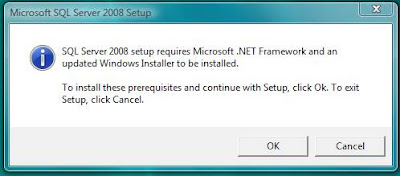
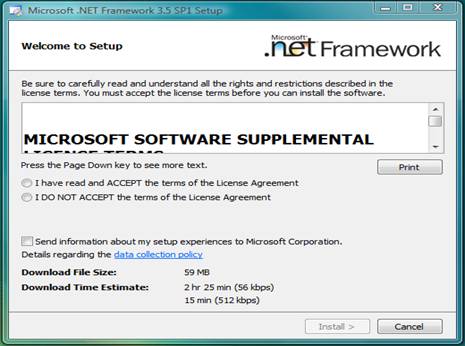
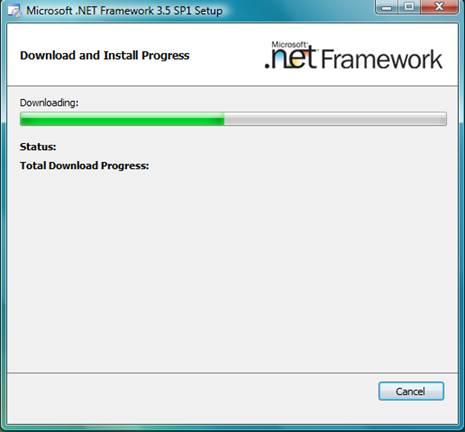
2. Run the setup.exe from the install folder. The installer checks for .NET Framework 3.5 sp1 and if not installed it will prompt you for installing it as show below.

3. Accept the license terms and proceed forward.

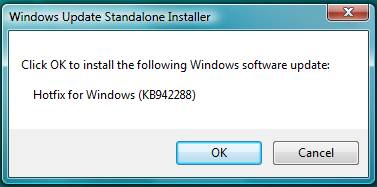
4. After .NET Framework is installed it will prompt for Windows Installer installation.

5. Once installed it will prompt for a system reboot. Please go ahead and reboot your system.

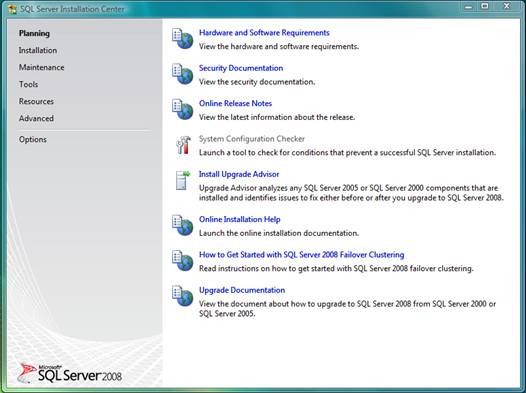
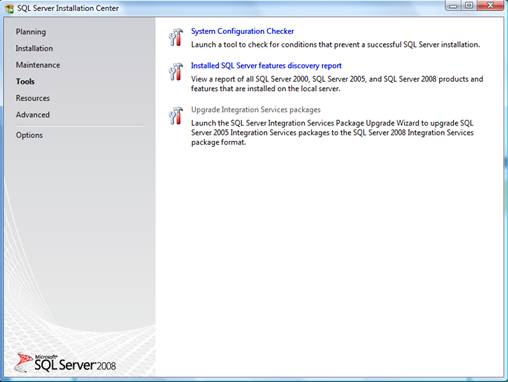
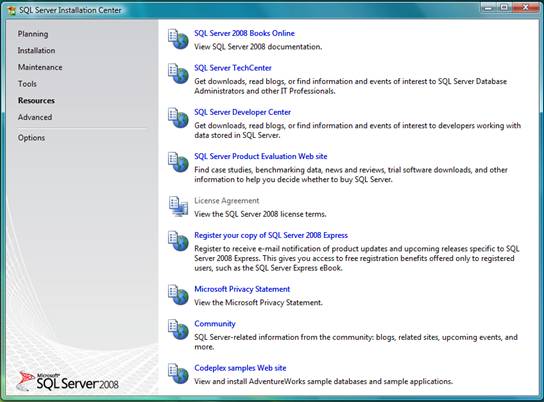
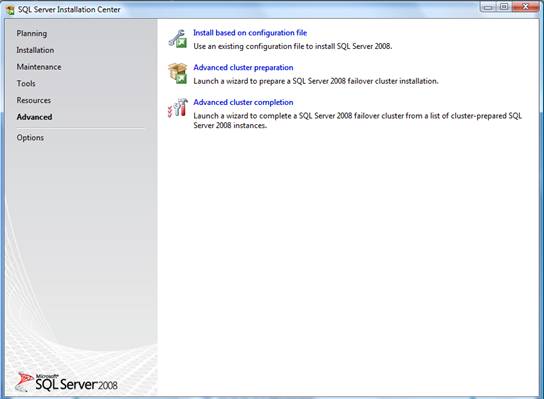
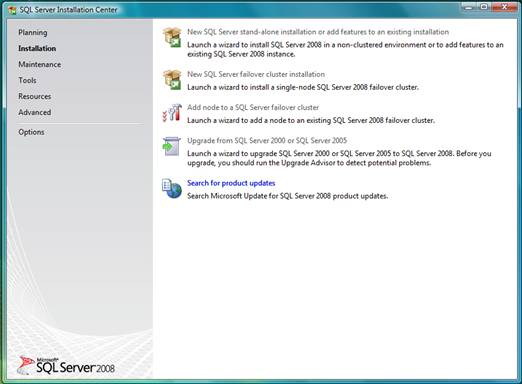
6. Once rebooted, please navigate back to the install folder and run the installer again. SQL Server 2008 has a nice Interface for installing different features. It has a total for six main tasks with each having different options.

7. Clicking on the Planning -> System Configuration Checker brings up a tool for checking the conditions that might prevent a successful SQL Server installation. This will help in determining for any potential problems while installing SQL Server 2008.

8. The rest of the screens show the different main tasks.

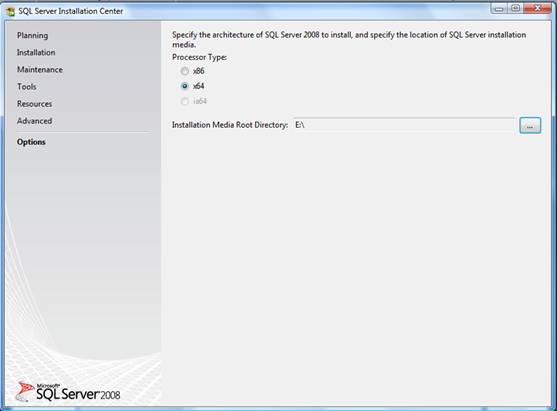
9. The options tasks determines the version for SQL Server to be installed. I will be installing the 64 bit version

10. Install the SQL Server by choosing Installation -> New SQL Server stand-alone installation

11. You can choose to install a trial version or enter the product key to install the version. I will installing the developer full version of the software.

12. Accept the license terms and install the support files when prompted.

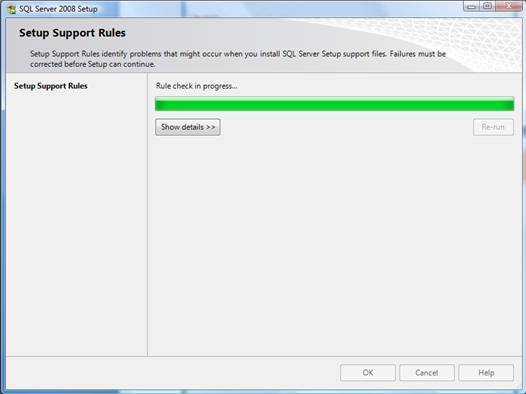
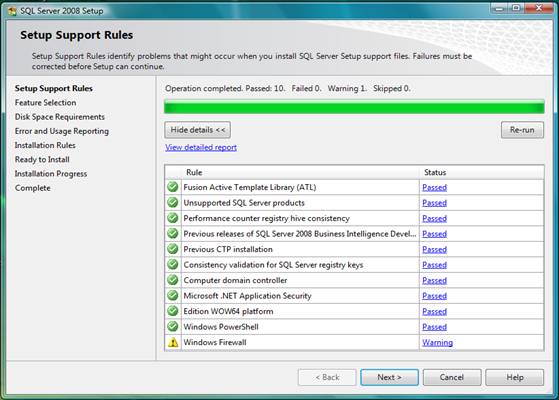
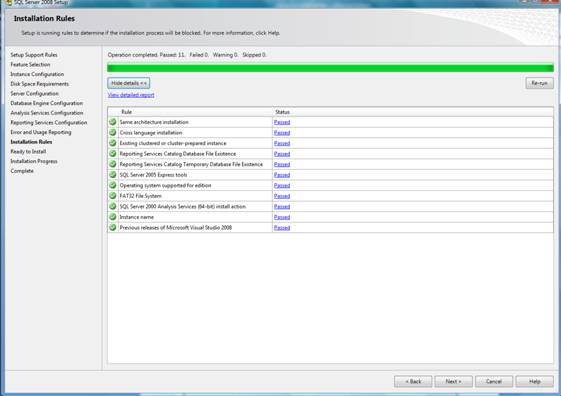
13. Any potential problems that might occur are again displayed and this cast an issue with Windows Firewall was displayed

We will open up the ports later after the installation is done. The ports are mentioned at the end of this post.

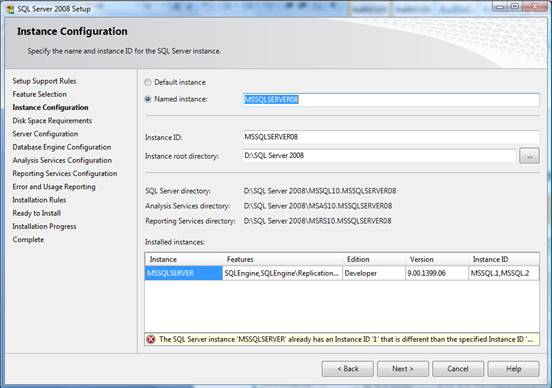
14. Next you will configure the required features. Since I will be installing SQL Server 2008 on a machine which has SQL Server 2005 installed, the default instance cannot be used to install it. A new instance with a unique name needs to be used. I will be using MSSQLServer08 (note the warning which shows up if you use the default/already existing instance name).

15. Next you need to configure the service accounts and I choose to use the same account for all SQL Service services.

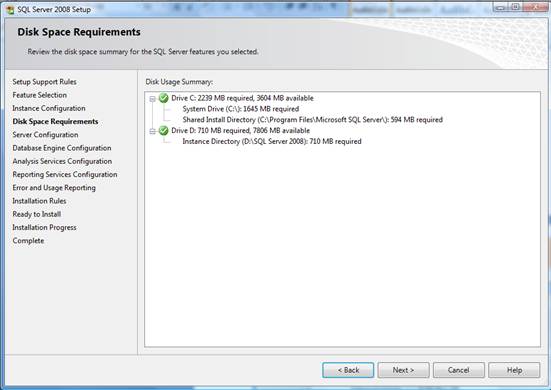
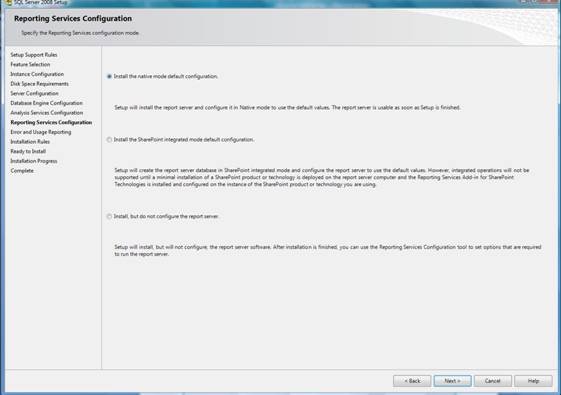
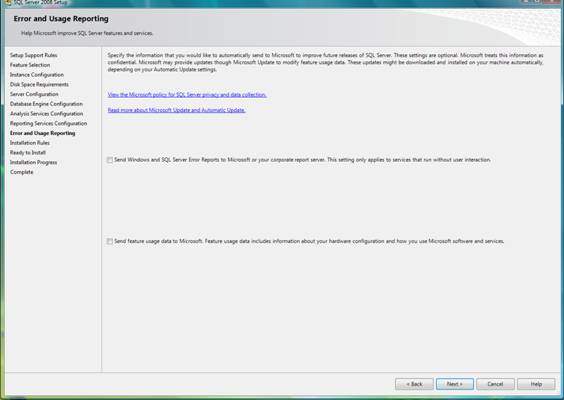
16. For each of the services, you will be able to configure the administrative accounts, installation paths as shown in the next screens…

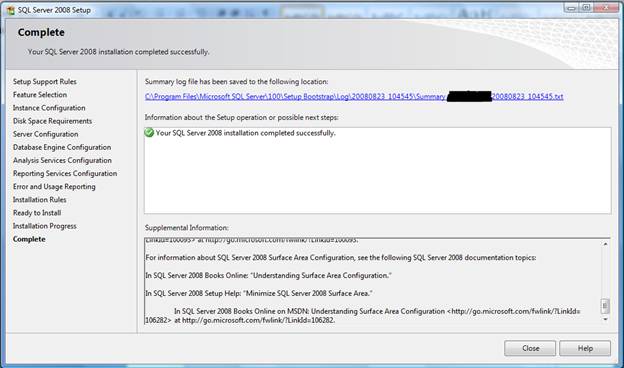
17. Please restart the system after the installation is complete.

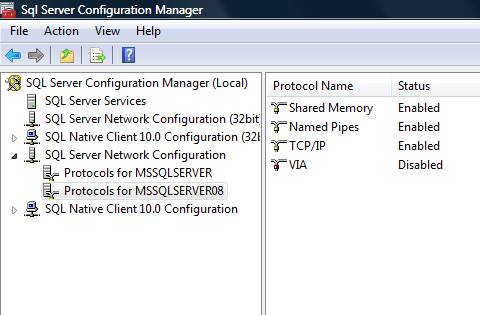
18. In order to enable remote connections to the SQL Server, the following steps need to be followed: Got to All Programs -> Microsoft SQL Server 2008 -> SQL Server Configuration Manager and enable the TCP/IP and Named Pipes protocol for the installed instance.

19. The following ports need to be opened up in the windows firewall:

Once the ports are up, you should be able to connect to SQL Server from a remote machine.

Service Name

Port Number

Database Engine

1433

SQL Browser

1434

SQL Broker

4022

Analysis Services

2383

Reporting Services

80/443

20. Open the SQL Server management studio and if you have SQL Server 2005 installed, the following message will come up. I did not want to import the settings from SQL Server 2005 and selected no to continue.

21. Next click yes to add the SQL Server 2005 management studio registered servers to 2008 Management studio.

You should be now ready to build and develop new databases....

References:

http://msdn.microsoft.com/en-us/library/ms143219.aspx

Wednesday, January 9, 2008

Login failed for user 'YourUserName'. The user is not associated with a trusted SQL Server connection.

I was trying to add a new user to one of the databases and it was throwing me this error:

Login failed for user 'YourUserName'. The user is not associated with a trusted SQL Server connection.

I had seen this error before, but was not able to quickly realise the reason for the failure. I had created a sql server login, then a database user and finally mapped the sql server login to the database. The roles for the user were also set properly.

It was the sql server authentication modes. SQL Server was configured for only Windows authentication and not SQL authentication. Once SQL Server authentication was enabled, it worked fine. I had to reset the password after enabling SQL Server authentication mode.

Thursday, October 4, 2007

How to become a DBA from a Developer

Today, I was listening to an audio talk show on RunAsRadio about being a better DBA. This show was hosted by Richard Campbell and Greg Hughes with Brad McGhee as the guest.
Brad gave some real good tips for becoming a better DBA.

Here are a few tips from the show:
  • Love the DBA work. If you are not going to love something, you will never be able to understand it.
  • Take responsibility. This is the only way you will be able to learn something new.
  • Understand your organization's data. This will help you a lot in better structuring your databases.
  • You have to be a good Problem Solver.
  • Read Books...this is one of the easiest ways to learn something quickly. I still prefer books to electronic media.
  • Take Classes/Training.
  • Participate in forums.
  • Be active in your community and attend events (like PASS).
  • Always keep looking for the Dirtiest, hardest jobs. This will help you by giving you new harder challenges everyday.....keeps your brain sharp.
  • Be proactive (prepare for next failure).
These are only a few tips and if you want to know more, you check out the audio here.
Thanks for the great show guys and keep on coming up with such shows....

Wednesday, October 3, 2007

Moving SSIS packages from Development to Production

I built a few packages on my development machine and it worked fine without any major hiccups. Then after moving the packages to the destination server, it started throwing weird errors. I had first changed the connection strings in the package configuration file but still the following errors started showing up :

First Error:

a)
Failed to decrypt protected XML node "PackagePassword" with error 0x8009000B "Key not valid for use in specified state.". You may not be authorized to access this information. This error occurs when there is a cryptographic error. Verify that the correct key is available.

b)Failed to decrypt protected XML node "DTS:Property" with error 0x80070002 "The system cannot find the file specified.". You may not be authorized to access this information. This error occurs when there is a cryptographic error. Verify that the correct key is available.

This happens because of the package protection level which is by default set to "EncryptWithSensitiveKey". Setting the package protection level to "DontSaveSensitive" helped me to remove these errors. This can be done by right clicking the package in the designer and changing the properties
Also, I setup the proxy sever agent so that the package runs under my account(the one which created the package)

Second Error:

After the first error was resolved, now was the time to run the packages. When I ran the package, it threw an error which was something like this:

SSIS Error Code DTS_E_CANNOTACQUIRECONNECTIONFROMCONNECTIONMANAGER. The AcquireConnection method call to the connection manager "*****" failed with error code 0xC0202009. There may be error messages posted before this with more information on why the AcquireConnection method call failed

The error was happening in an access datasource. I went back into the package configuration file and removed the initial catalog parameter value(which was empty by the way) and voila, it worked.
This post helped me to get through :
https://forums.microsoft.com/msdn/showpost.aspx?postid=73863&siteid=1